
How To Provision An IoTie eSIM On A Teltonika Router
To provision an IoTie eSIM on Teltonika Routers please first log into your IoTie dashboard at https://mobile.iotie.com and navigate to the "Provision eSIM's by EID Match" menu.
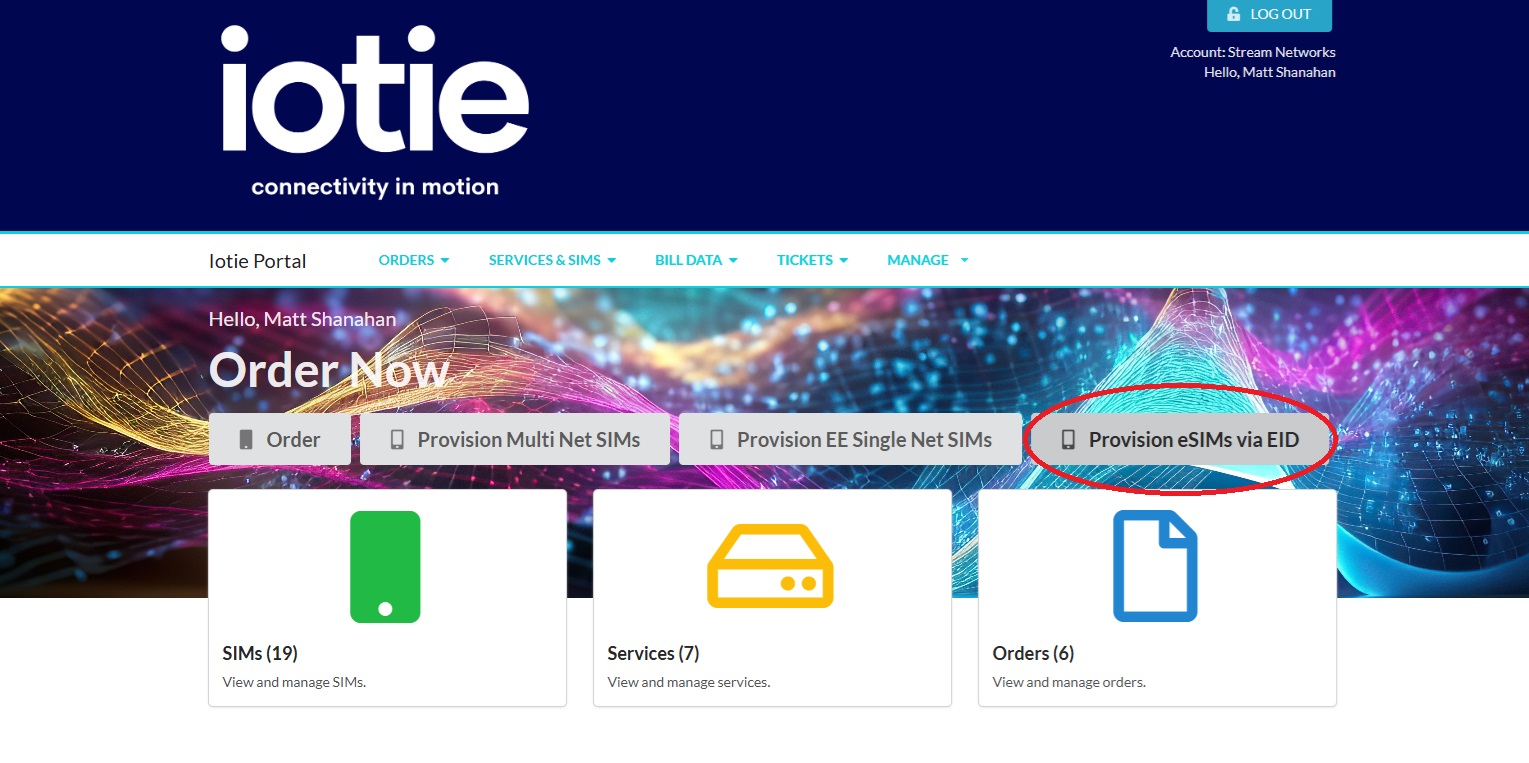
Next access your Teltonika router via the webgui. If configuring for the first time the Teltonika Routers default address is 192.168.1.1 with a username of "admin" and a password of "admin01". Enter the username and password and once in the configuration gui navigate to "Network", "Mobile", "eSIM Profiles".
In the eSIM profile if using a dual SIM model you will be presented with a "Primary Modem" and Secondary Modem" click on the modem you wish to configure and record the eSIM ID. The eSIM ID is also referred to as an EID.
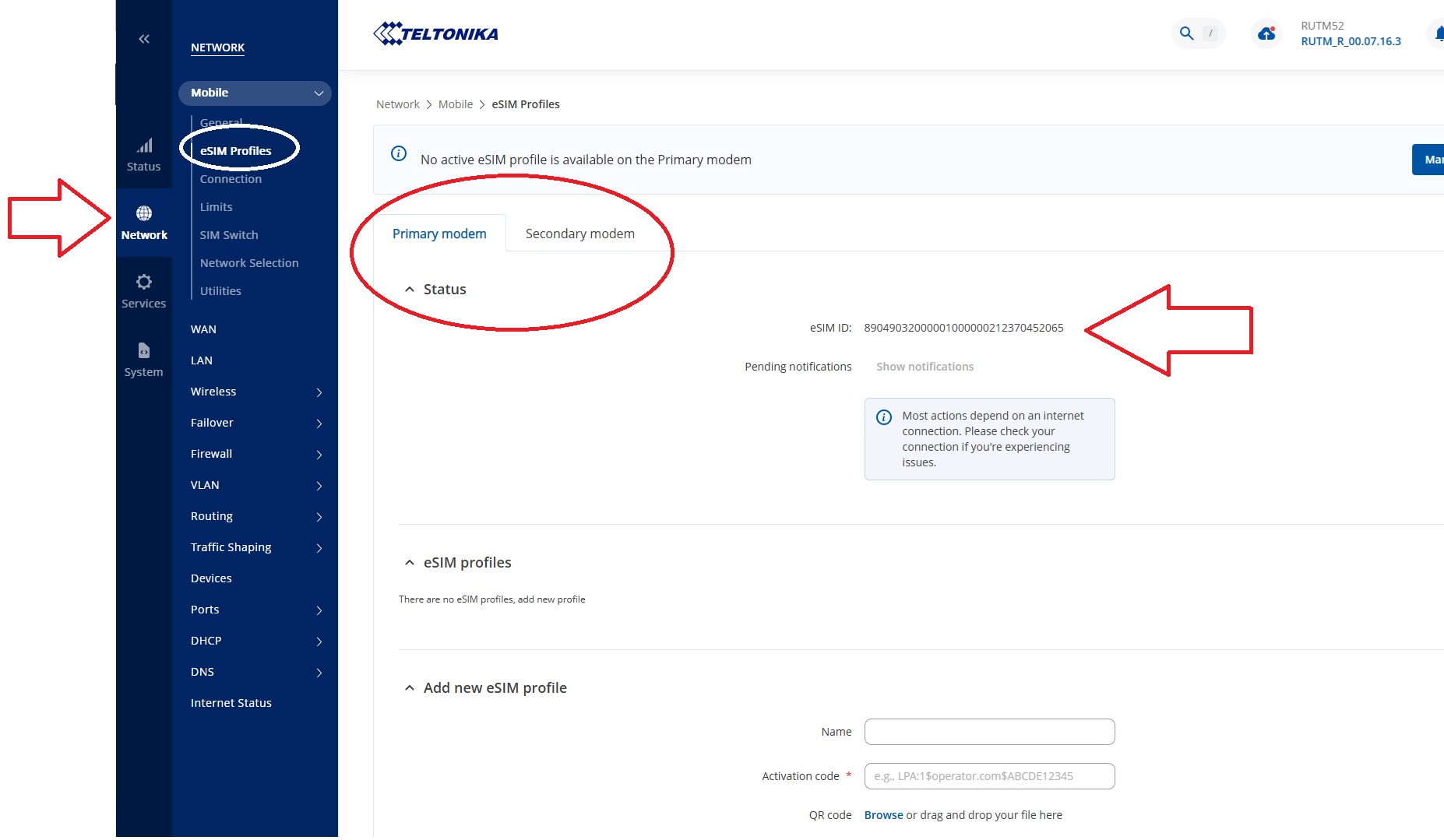
Now you have located the eSIM EID (Embedded Identity Document) navigate back to the IoTie SIM management portal to order your eSIM.
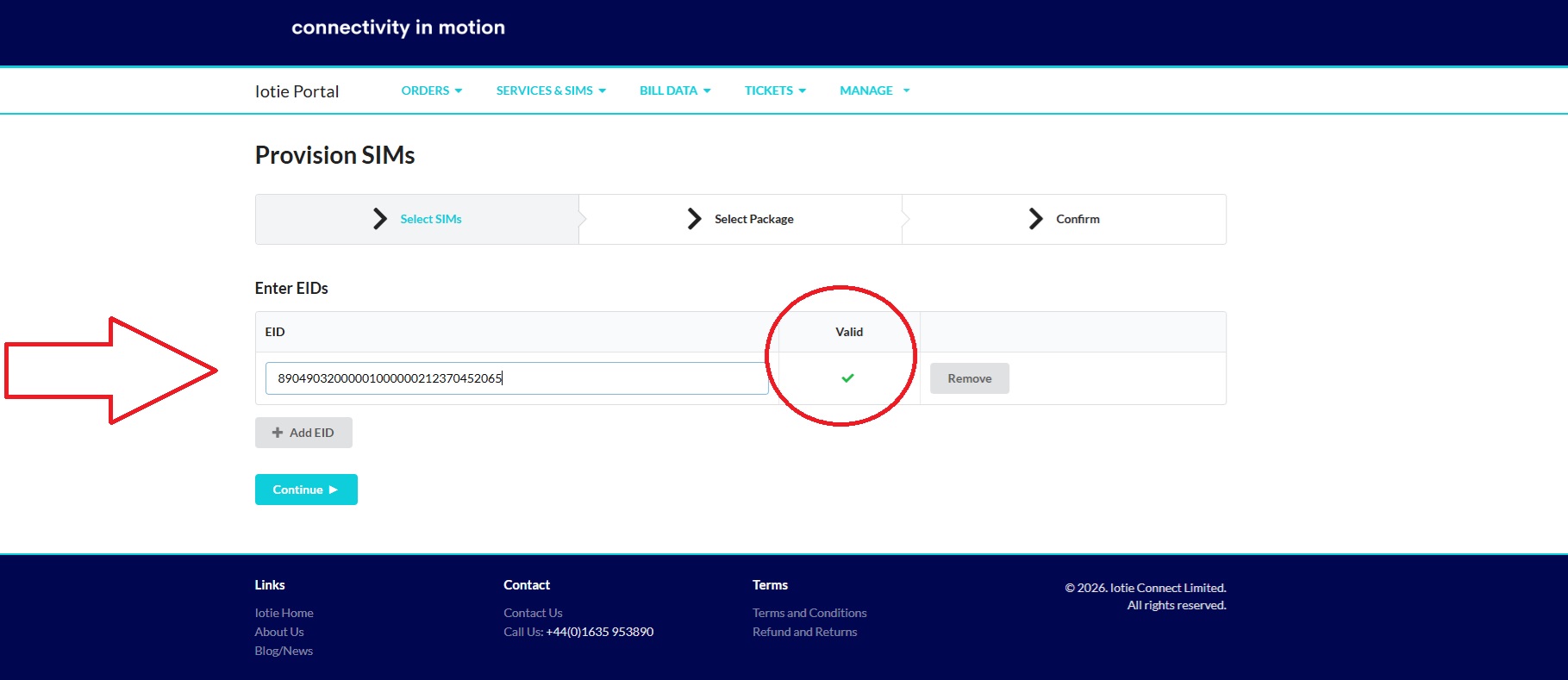
Enter your EID, the IoTie portal will validate that its a valid EID number by displaying a green tick, and then click continue.
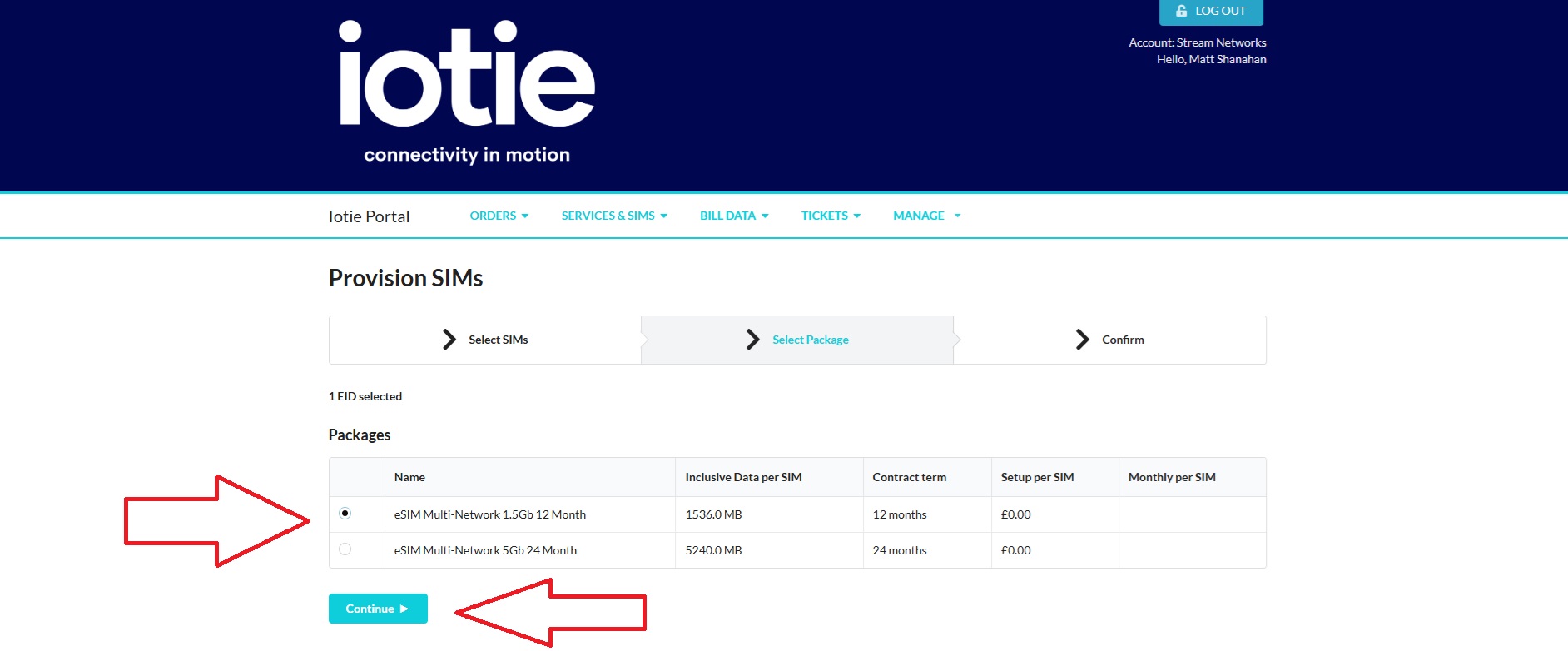
Next choose your IoTie eSIM IoT Package to assign to the eSIM and click continue.
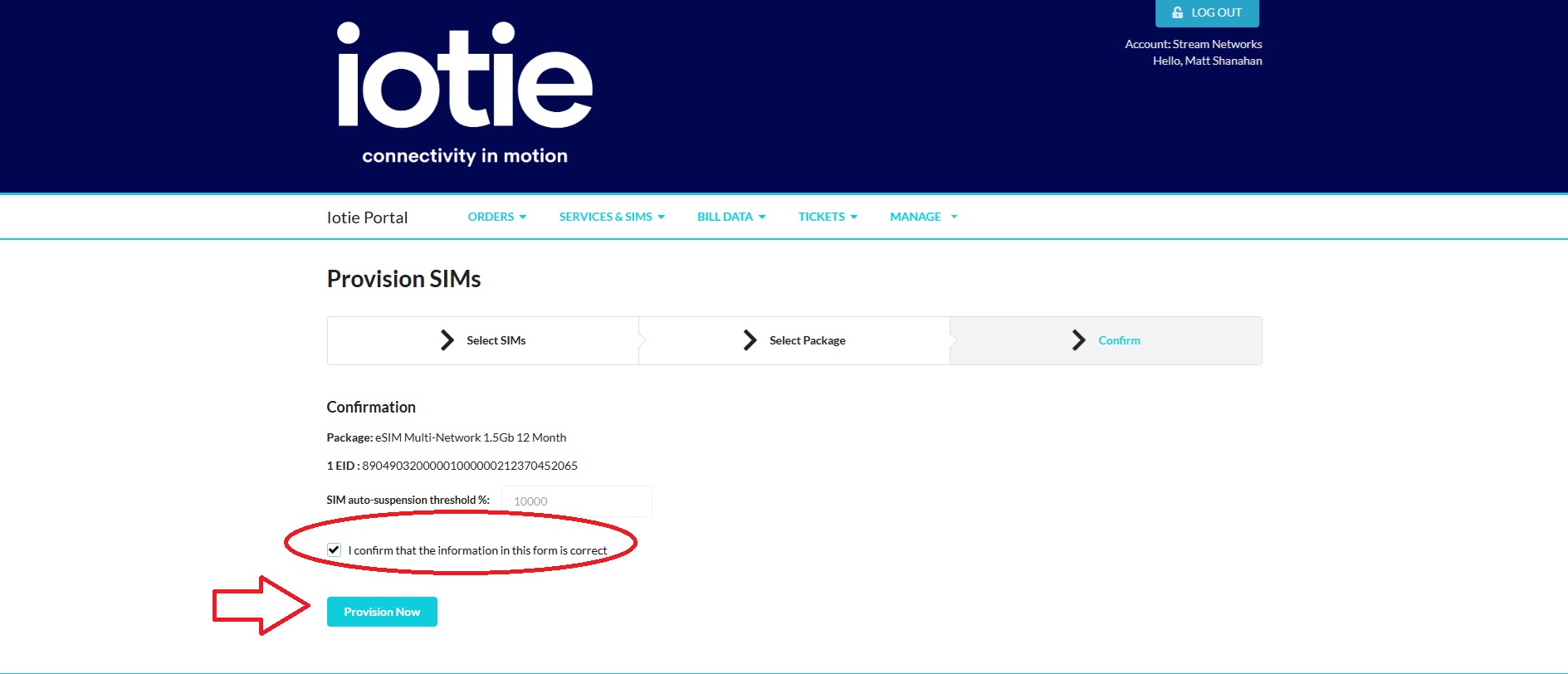
And next click on the check box to confirm the information is correct and then click on provision now.
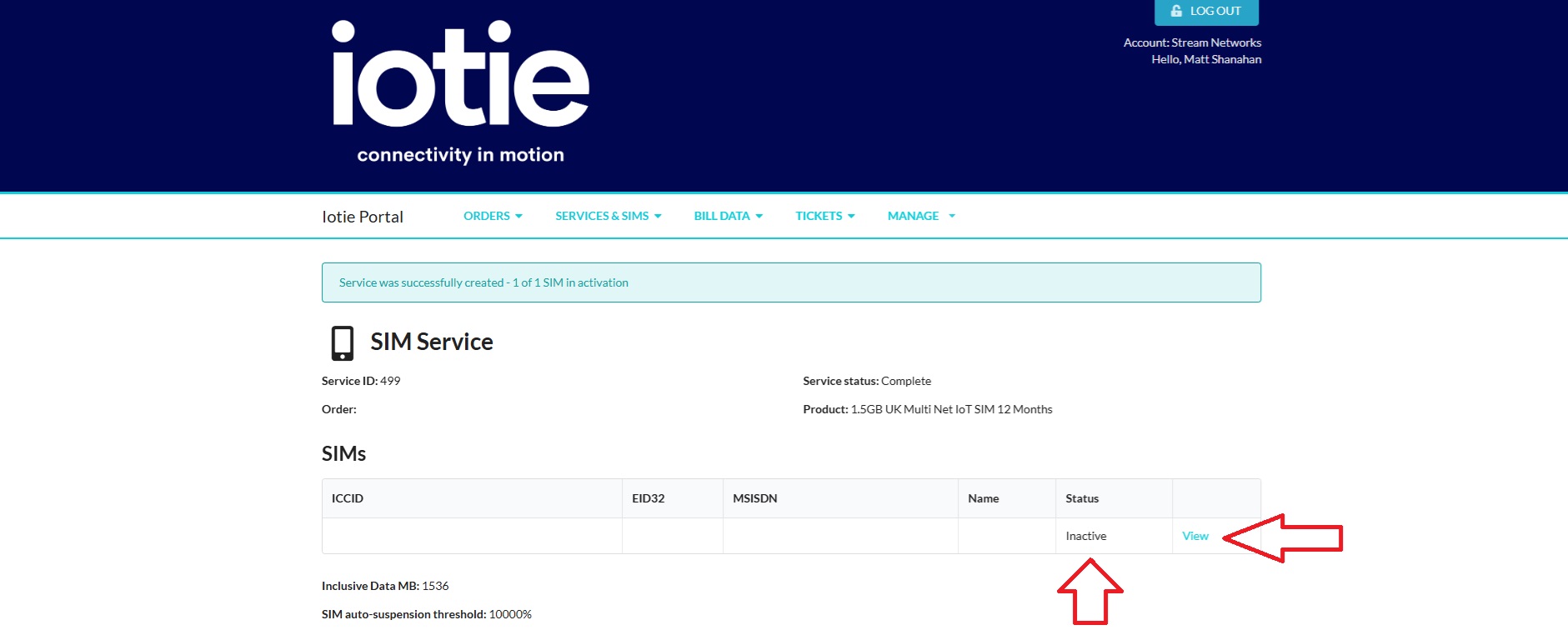
The eSIM should now show as successfully provisioned and an ICCID and a MSISDN code will be displayed in the portal with the status of Inactive. Please note the ICCID and MSISDN has been removed from the screenshot below.
Next click on the "View" SIM link to obtain the eSIM activation code which is required for entry into the Teltonika Router.
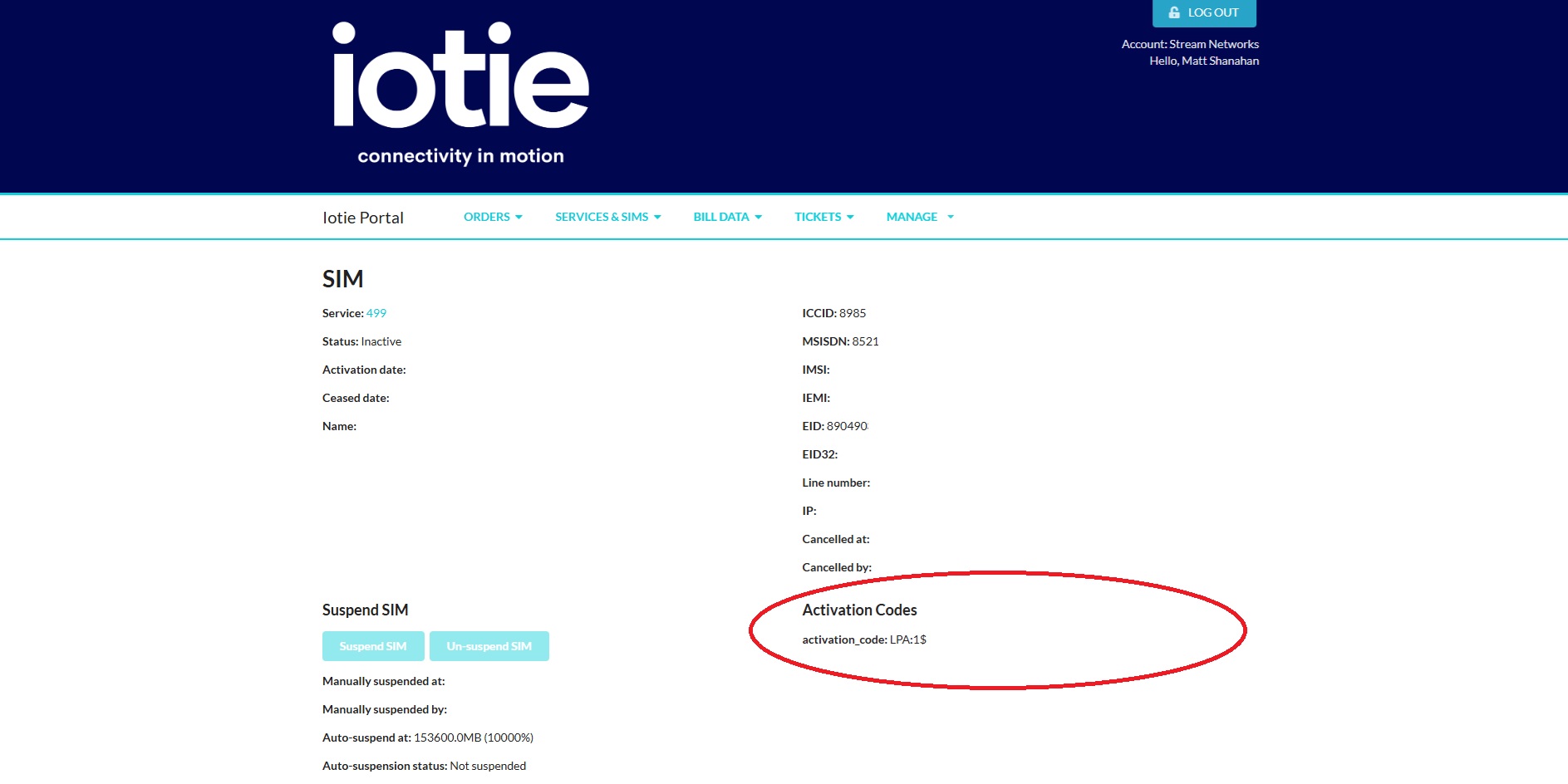
On the next screen you will again seed the ICCID, MSISDN, EID and now an activation code will be displayed.
*Please note these values have been removed in the image below for security purposes.
Copy and paste the activation code as you will need this for the Teltonika Router configuration.
Next you will need to go back to your Teltonika router to complete the eSIM provision process.
*Please note in order to download and provision an eSIM profile your router will need to be connected to the Internet either via another SIM card, Fixed WAN link or using the router "Client WiFi" settings to connect to your local WiFi network.
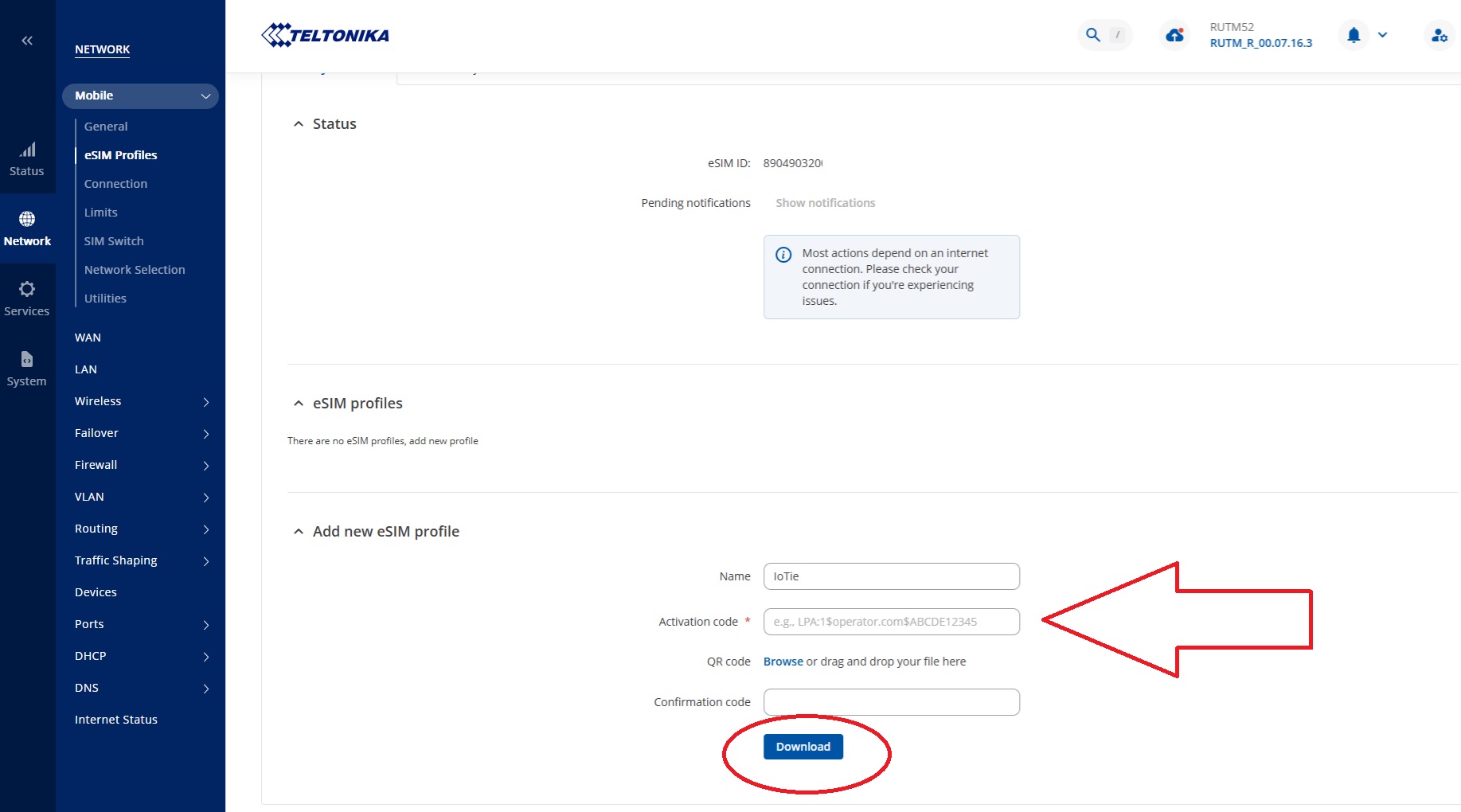
Navigate back to the Teltonika router - "Network" - "Mobile" then "eSIM Profiles" locate the modem you are configuring either primary or secondary (whatever EID you entered in the provisioning process".
In the "Add new eSIM Profile" section give the profile a name of "IoTie" or whatever you want to name the profile as. Next enter the activation code that was generated in the IoTie SIM management platform and click on "Download" to download the profile.
*Please Note a confirmation code is not required.
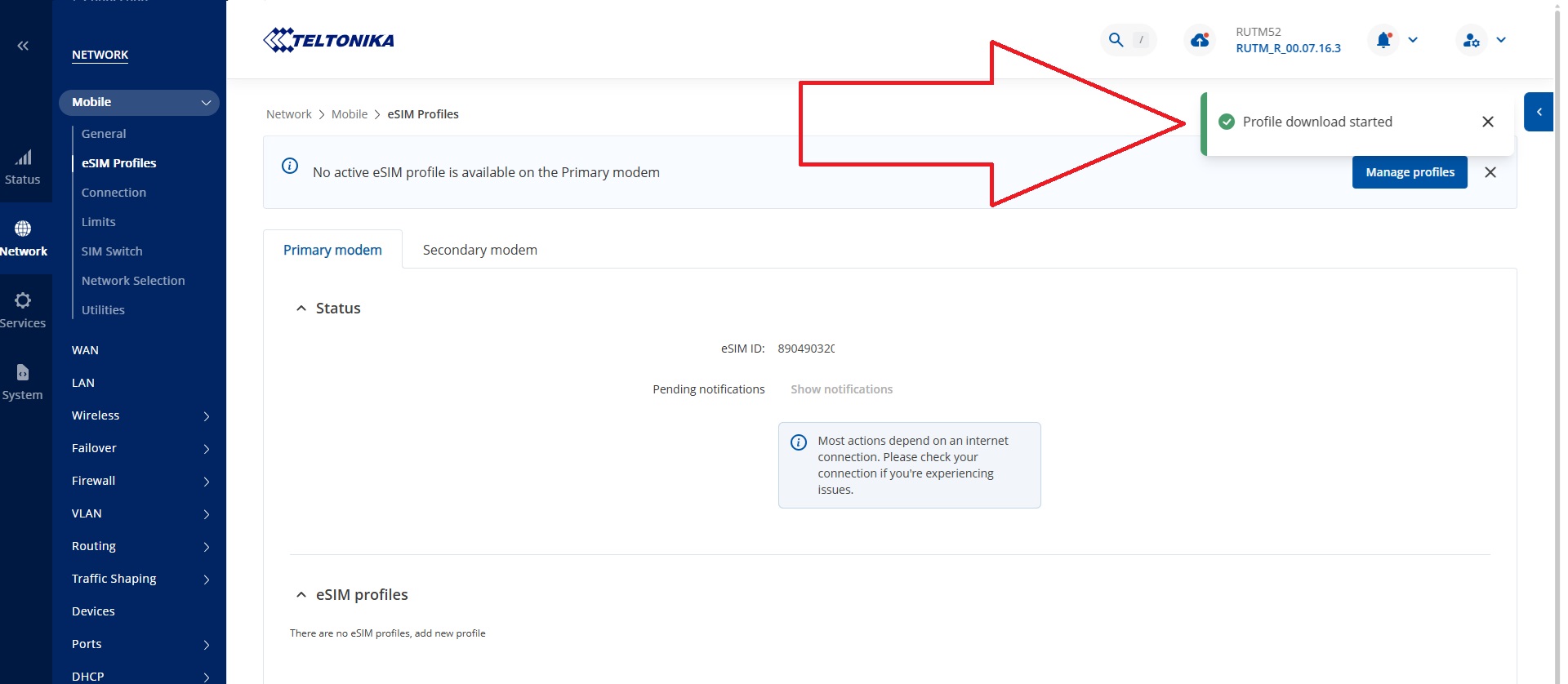
You will now see the Teltonika router has started the "Profile Download"
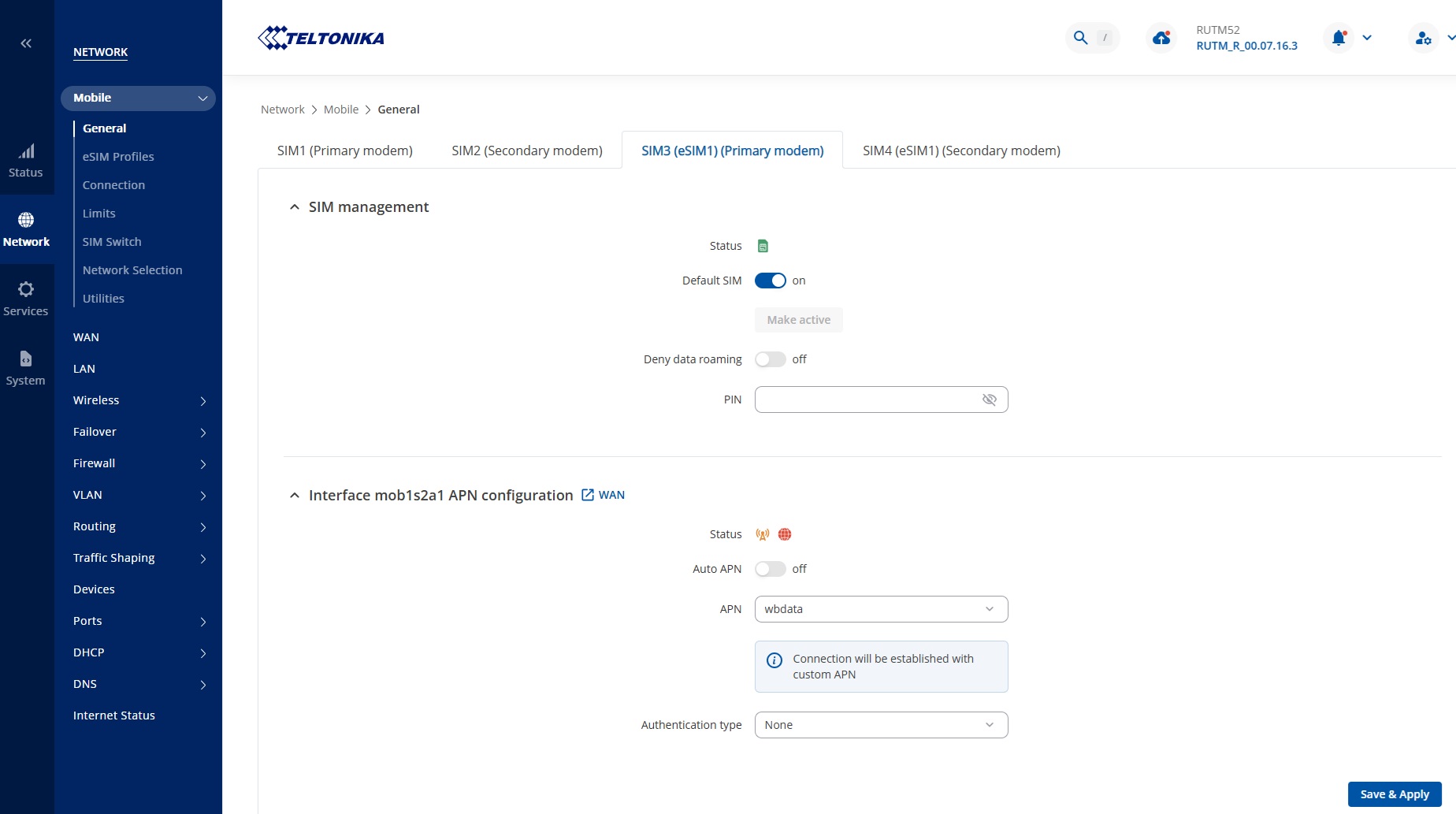
Next navigate to "Network" - "Mobile" - "General" and enter the IoTie eSIM APN name of "wbdata" with authentication set to "none"
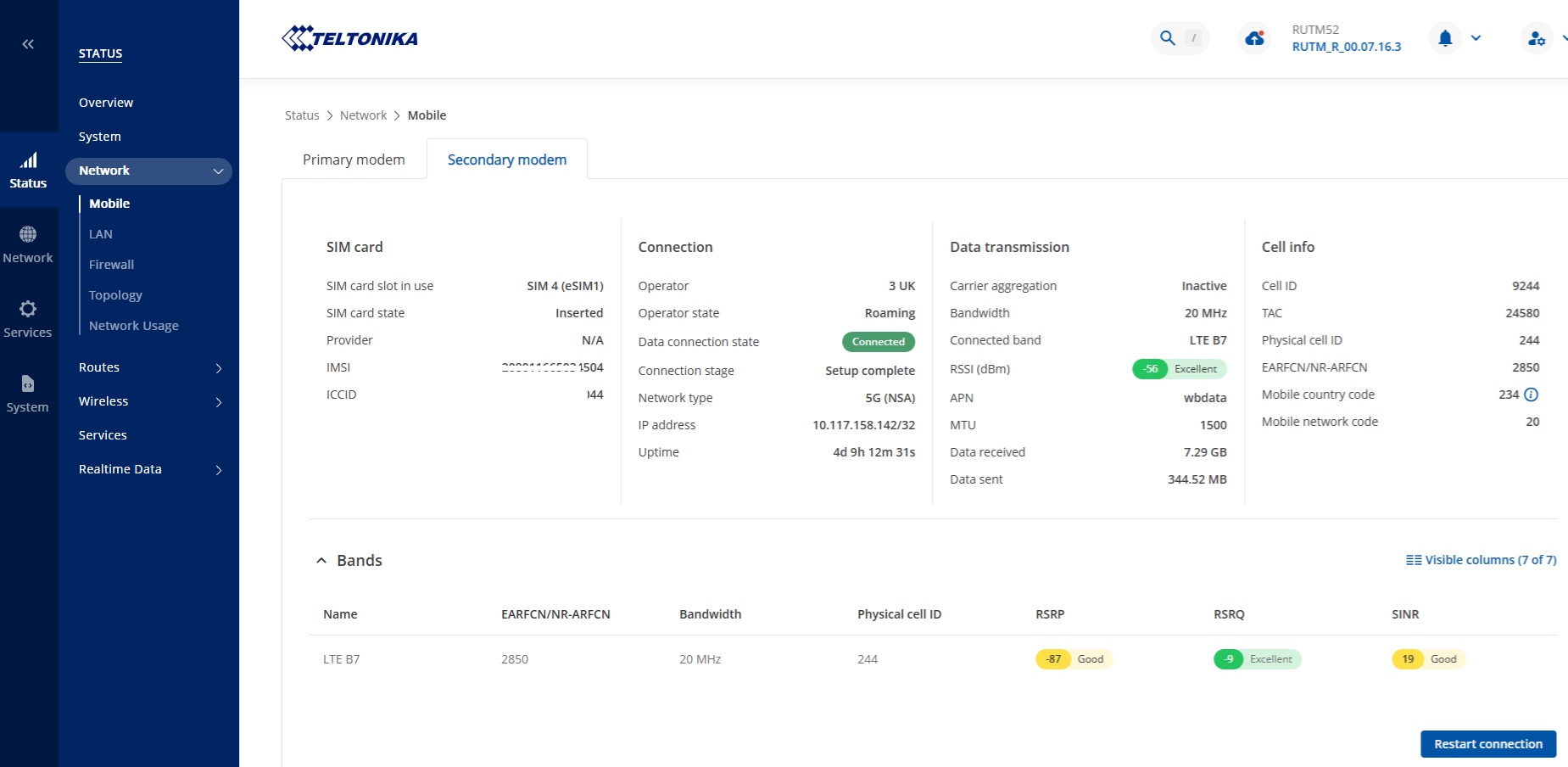
If you now navigate to "Status" - "Network" - "Mobile" and the modem you just configured you should see the IoTie Multi-Network eSIM connected.
Troubleshooting Tips
Please note, most issues with eSIM delivery relate to your router not having Internet access. Please ensure you can ping our provisioning servers to ensure connectivity to the provisioning server for the eSIM profile download.
You can locate the URL of our provisioning servers in the Activation Code provided in the IoTie SIM management platform. The URL is located between the $ (dollar signs) of the Activation Code string.
Other issues normally relate to the eSIM APN set-up. Please contact our support team on +44 (0)1635 953890 for further help.